In my previous blog I went through the introduction about AutoHotKey and in this blog I will introduce you to GUI or Graphical User Interface. Before I do start, I want mention that the final version can be found here: GitHub, created by Asger Juul Brunshøj, you can also use this to follow along to understand what this script is doing.
Table of Contents
- Prerequisites
- Introduce Label, Gosub, Global, #Directives
- Resources
- Create GUI script
- Host.ahk
- Miscellaneous.ahk
- GUI.ahk
- UserCommands.ahk
Prerequisites
- Create a script
- Basics of AHK
- Flow control
The prerequisites are there so that you can understand what is going on in the blog and future blogs. Understand how to create a script with Hotkey and how to run the script is needed. The basics can be found in the previous blog in creating a simple script, in short understand the syntax, Run, Send, and MsgBox. Flow control is the flow of how the script is running and understand how an if statements works. To also add that wasn’t mention in the prerequisites list is that I will be going back and forth with Java as it is a common programming language and I’m very conformable with but it is not needed to understand how to create a GUI script.
Introduce Label, Gosub, global, #Directives
Label
Label is like a function but has no arguments to pass in. When called it will execute the commands below the label where it was declared until it reaches the Return or Exit then it returns to where the label was called. Label are used when want to have a callback in a GUI, define a variable in a label globally or use a variable in a global scope.

To create a label, you need a label name to call that label later (myLabel), followed by a colon to declare a label, add commands to do something you want it to do and ending with the Return.
Gosub
Gosub allows you to execute a defined label or jumps to the label and execute and return back to Gosub and continue execution, unlike Goto jumps to the label and never return backs to Goto and continue on. This link: Gosub vs Goto explains why we are using it, and another reason why is because Goto can’t jump outside of a function to execute a label.

Global
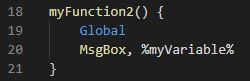
Global allows you to use a variable outside from a function instead of a parameter as it can get messy if there is a lot of arguments passed in or you can use it to declare a global variable if it doesn’t exist.

#Directives
There are many directives that we can use but we will be using #Include which allows us to combine other scripts into one script for readability reasons.

For #Include to work we use %A_ScriptDir% for a relative path of the current script’s path and import the script that we want to include by specifying the script file name or any other subfolder the script is in.
Resources
- https://www.youtube.com/watch?v=o-7mtSRYWOM. This video will teach you the basics to creating a GUI
- AHK documentation is still recommended but in some area they aren’t fully in depth in some of the concepts.
- https://www.w3schools.com/tags/ref_urlencode.ASP. This will help you understand the uriEncode function in miscellaneous.ahk
Create GUI Script
To start off we are going to create a file structure for readability sake.

To run the script, we will only run “Host.ahk” script as it will include the other scripts needed to run properly. The GUI folder will contain GUI.ahk the script to create the GUI and UserCommands.ahk are the commands that are implemented.
Host.ahk

Important thing to note is the SetCapsLockState, AlwaysOff as we will be using caps lock to trigger the GUI script and is not needed if you change the key trigger in GUI.ahk
Miscellaneous.ahk


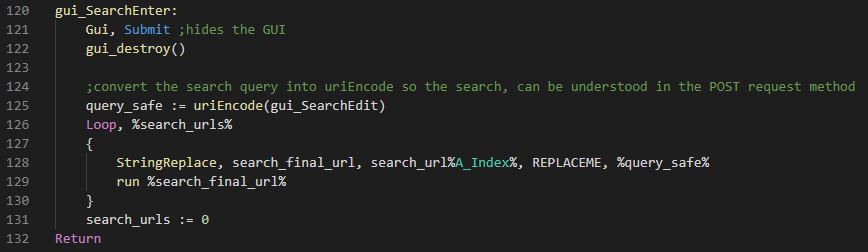
This converts the searched that you input for Google search, or Reddit for an example into readable search query. If you want to learn more there’s a link in the resources section about URI encoding.
GUI.ahk
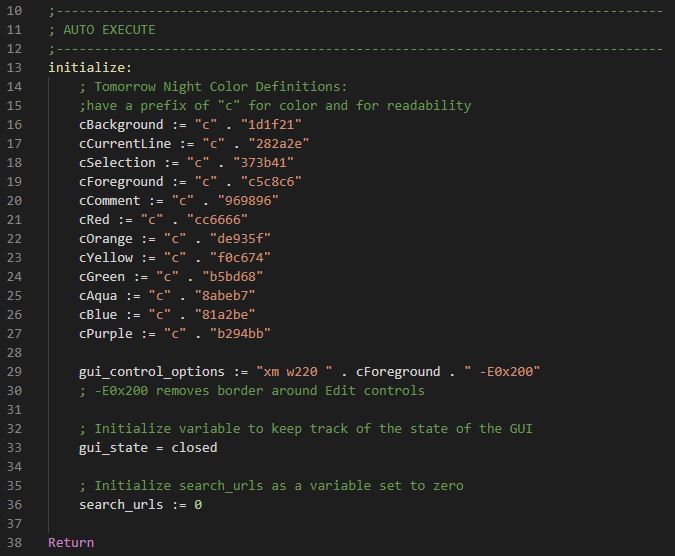

To launch the GUI, we created a Hotkey assigned to caps lock and space. Line 44 we check the GUI state to allow dynamic functionality to it, allowing open and close to the GUI and later we add additional element to the GUI, for example we enter “/” for Reddit as a command it creates new element(aka control) for the search query for that website.
When we add things like text, button, or checkbox in AHK it’s referred as “control” or in Java JTextField, JButton, JCheckBox.
The standard to creating a GUI is create it first with all its controls (Swing components in Java) then display the GUI on screen just like in Java.

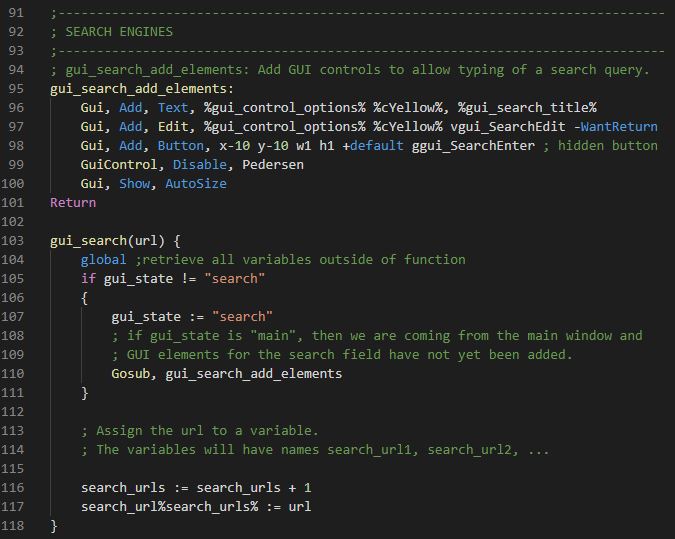
This add a text field with the style option of the variable gui_control_options. Whenever user input in the text field it set that to the variable Pedersen and notice that it has a prefix of v for output variable and gFindus is the g-label a callback function with the prefix of g.
Result


Result
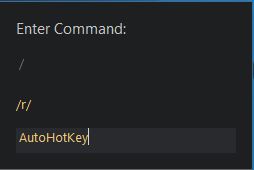
Here we enter “/” a command to search in a subreddit on Reddit which adds two controls: one being the “/r/” known as subreddit and the other is a text field.
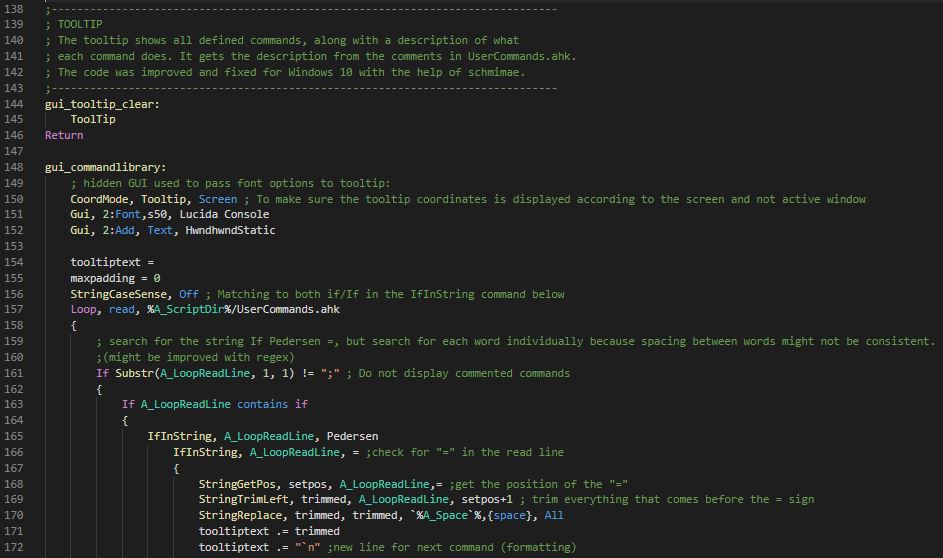

Result

UserCommands.ahk
This script contains all the implemented commands that you can enter. Feel free to add your own commands following the syntax structure as the tooltip will read this file.
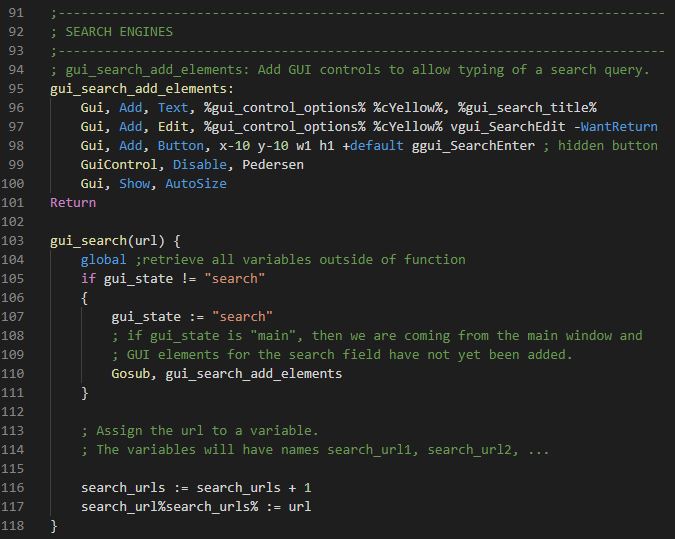

Syntax

This is the end of this intermediate-advance to AutoHotKey. There’s one more blog going into more advance level of using AutoHotKey that I will be posting.
 Eric's Blog
One thought on “Learn AutoHotKey Part 2”